Pages

Ads

Featured Posts

Tuesday, 21 October 2014

iOS 8.1 on iPad 3: Impressions & Performance

The iOS 8.1 update delivers bug fixes for many iOS 8 problems and a much-needed performance boost to the iPad 3. It’s still early, but after using the iPad 3 for a few hours it feels snappier and delivers faster switching between apps and the home screen even with iPad performance enhancements turned off.
The iOS 8.1 release is smaller and more focused than the iOS 8 update that arrived last month. After using the iPad 3 on iOS 8.1 it finally feels like Apple delivered the update that the company should have simply waited for.
This is our early iOS 8.1 on iPad 3 review, which will help you decide if it is worth installing on the older iPad.
Apple delivers the iOS 8.1 update a month after the iOS 8 release to fix many common iOS 8 problems. There is nothing in the release notes specifically mentioning performance on the iPad 3 or the older iPad 2, but so far it definitely feels like Apple tightened things up.

iOS 8.1 Installation

The iOS 8.1 installation on the iPad 3 went smoothly, although some users ran into iOS 8.1 install problems including taking a long time to verify the update and forcing some users to plug-in to iTunes to restore.
After the iOS 8.1 update completed, about 35 minutes after I started the iPad 3 rebooted, ready for use with all the apps ready to go.

iOS 8.1 on iPhone 6 Plus Performance

The best part about the iOS 8.1 iPad 3 update is that the older iPad runs better than it did on iOS 8. This is not my primary iPad, but I use it regularly to see how fast switching apps, launching apps and other common tasks take. The iOS 8 update slowed the performance of the iPad 3 a bit, and it seems that the iOS 8.1 release brings it back up to speed.

iOS 8.1 Apps

Apps run just fine on the iPad 3, including Pinterest, Facebook, Safari and other frequently used apps like Mail. Streaming apps like Spotify and Netflix also work just fine on the latest iPad software.
Apple fixes a common iOS 8 complaint with iOS 8.1.

iOS 8.1 Battery Life

It is still very early to make a definitive judgement on the iOS 8.1 battery life for the iPad 3. The iPad already delivers close to 10 hours of battery life so one afternoon of use won’t go anywhere close to draining the battery. The good news is that the iPad 3 battery life did not drop drastically after installing iOS 8.1.

iOS 8.1 WiFi & Bluetooth

This is a WiFi only iPad 3 so I can not check the performance of cellular connectivity but WiFi and Bluetooth seem to work well. I can connect to Bluetooth headphones without any troubles, which is not a surprise. WiFi connects and keeps the connection on my home network and I can also connect to the personal hotspot on the iPhone 6 Plus.

iOS 8.1 Bugs & Issues

In a nice change of pace Apple delivers a number of iOS 8 bug fixes in iOS 8.1 and so far there are not any show-stopping iOS 8.1 bugs on the iPad 3. That’s not to say we won’t discover any as we use the iPad 3 more and as other users install the update, but so far things are running smooth.

iOS 8.1 Speed

So far iOS 8.1 on the iPad 3 feels faster. I disable the iPad 3 performance enhancements and even with animations the iPad 3 switches apps faster and switches to the home screen faster than it did just a day ago. This does not push performance up to iPad Air levels, but it is better than it was for the past month.
IOS 8.1 performance on the iPad 3 is better.


Monday, 20 October 2014

How to Fix Internet Explorer has Encountered a Problem and Needs to Close

Have you ever been browsing the Internet using IE happily until all of a sudden you get this horrid “Internet Explorer has encountered a problem and needs to close” error message, after which IE completely shuts down and you lose all of your tabs along with any forms you might have been filling out? Now that I use Chrome religiously, this has not happened to me even once, but it happened all the time with Internet Explorer.
So for those poor souls still using older versions of IE, here’s a quick list of steps you can take to try and fix the underlying problem. The cause of this error can be any number of things, so you may have to try a few different methods before the problem is fixed. If you click on the link to see the data the error report contains, you may see something like this:


Error sign
AppName: iexplore.exe AppVer. 7.0.5730.11 ModName: unknown
ModVer: 0.0.0.0 Offset: 61eb77e0


So what can you do if you get this error? Try each one of the following steps and see if the problem goes away.

Method 1

Open IE, go to Tools, Internet Options or click on the Settings gear icon at the top right and then clear out the temporary Internet files. Under Browsing History, click the Delete button and then check Temporary Internet files and website files. In case you downloaded an executable file that is causing the problem, this will remove it.

Method 2

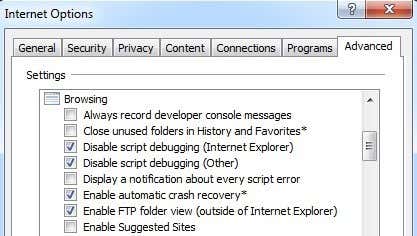
In some versions of IE, script debugging can be the cause for this issue. You can try disabling script debugging by going to Internet Options again, clicking on the Advanced tab and then checking the Disable Script Debugging (Internet Explorer) and Disable Script Debugging (Other) boxes.

Method 3

Run anti-spyware and anti-virus software on the computer. Download MalwareBytes Anti-Malware and Spybot and run each to remove any malware. Both program have free versions and that’s all you need. Also, download CCleaner and HiJackThis and run both applications. Remove unwanted entries that you see when you run HiJackThis (you’ll have to read the docs to know what to remove).

Method 4

Go to Start, Run and then type in MSCONFIG. Click on the Startup tab and uncheck all items and then re-start the computer. This disables all startup programs from running. If you still get the error, go ahead and turn them back on one by one and see at which problem the problem comes back. This is called performing a clean boot.


Method 5

Disable Smarts Tags in Internet Explorer by going to Tools, Internet Options, Advanced tab, and then clearing the Enable Smart Tags check box.

Method 6

Install the latest updates from Microsoft Update web site. If you started receiving this error AFTER installing the latest updates, you will have to perform a System Restore to the point before you installed the updates. You can access the System Restore feature by going to Start, All Programs, Accessories, and then System Tools.

Method 7

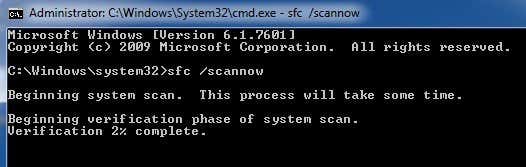
Use System File Checker to scan for changes or modifications to Windows protected files. If any files were overwritten or deleted, etc, SFC will automatically retrieve the correct version of the file and replace it. You can run SFC by going to Start, and then Run, typing in CMD and then typing sfc /scannow in the command window.


Method 8

Re-register Internet Explorer DLL files. Click on Start, then Run, type in CMD and then type the following lines and press Enter after each one:
regsvr32 softpub.dll
regsvr32 wintrust.dll
regsvr32 initpki.dll
regsvr32 dssenh.dll
regsvr32 rsaenh.dll
regsvr32 gpkcsp.dll
regsvr32 sccbase.dll
regsvr32 slbcsp.dll
regsvr32 cryptdlg.dll


Method 9

Disable all third party add-ons to Internet Explorer by going to Start, Control Panel, Internet Options, Advanced tab and then un-checking the “Enable third party browser extensions” check box under the Browsing section. You will have to scroll down a couple of lines.
You can also start IE with no add-ons by going to Start, All Programs, Accessories, System Tools and clicking on Internet Explorer (No Add Ons).

Method 10

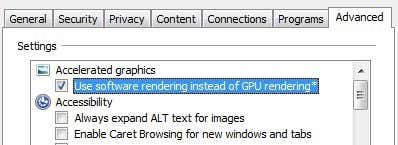
Sometimes a compatibility issue causes the problem with the graphics card. To check and see, go to Internet Options, Advanced and check the Use software rendering instead of GPU rendering box under Accelerated Graphics.


Method 11

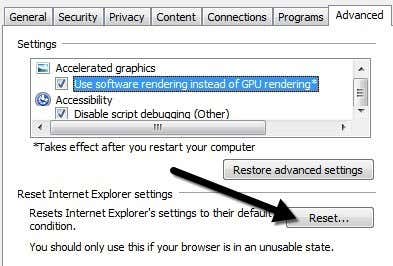
One final option you can try is to reset Internet Explorer. Again, go to the Advanced tap in IE Options and at the bottom you’ll see the Reset button.


Also make sure to check the Delete personal settings box when you get the pop up dialog to confirm the reset.
Hopefully if you’ve been getting this error, one of these methods mentioned above will fix the problem. If you have questions about how to perform a step, please post a comment and I will try to help you out! Enjoy!


Create Direct Links to your Files on Google Drive

You can upload files of virtually all types to your Google Drive – from documents to movies to zip archives – and people with whom you have shared the file can easily view them in the browser itself. The Google Docs web viewer is pretty capable and can render all the popular formats including Photoshop files and AutoCAD drawings

That’s a useful feature but sometimes you may want to bypass the built-in Google Docs viewer and force the browser to download the file instead of opening it. Thus if a user has Photoshop on their computer, the PSD file that you have shared through Google Drive will open in Photoshop and not in their web browser.


Google Drive will mostly render shared links in the browser but you can change that.

Create Direct Links and Skip the Web Viewer

Google Drive doesn’t offer a simple option for creating these “direct download” link but you can easily create them by slightly modifying the generated URLs. Here’s the trick.
A file hosted on Google Drive has a shared link that looks like this:
https://drive.google.com/file/d/FILE_ID/edit?usp=sharing
When you access this link, it will render the file in the browser but if you can rewrite this URL slightly, the link, when clicked, will download the corresponding file in the user’s browser instead of opening it in the browser. The modified URL would be:
https://drive.google.com/uc?export=download&id=FILE_ID
All you have to do is make note of the FILE_ID in the original URL and use it in the modified URL. For example, here’s an image file hosted on Google Drive that will open in the browser and here’s the modified URL that forces the browser to download the file.

Direct Download Links for Google Documents

The trick works for native Google Documents too though the URL format is a little different.
Google Docs: When you share a Google document, the URL would be:
https://docs.google.com/document/d/FILE_ID/edit?usp=sharing
Replace /edit with /export and add the file format that the document should be saved as and your download link is ready.
https://docs.google.com/document/d/FILE_ID/export?format=doc https://docs.google.com/document/d/FILE_ID/export?format=pdf
The above links will now download the same Google document in Word (.docx) and PDF formats. You can also use “txt”, “html” and “odt” for the download format.
Google Presentations: Google Docs offer an even simpler URL scheme for creating direct links to Google Presentations. The original shared links are of the following format:
https://docs.google.com/presentation/d/FILE_ID/edit?usp=sharing
The direct links for downloading the same presentation deck in PowerPoint (.pptx) and PDF formats are below:
https://docs.google.com/presentation/d/FILE_ID/export/pptx https://docs.google.com/presentation/d/FILE_ID/export/pdf
Google Spreadsheets: Open your Google Spreadsheet in the browser, make the sheet Public (or Anyone with a link) and make a note of the shared URL. It should be something like this:
https://docs.google.com/spreadsheets/d/FILE_ID/edit?usp=sharing
The direct download links use a similar format as Google Documents and will read like:
https://docs.google.com/spreadsheets/d/FILE_ID/export?format=xlsx https://docs.google.com/spreadsheets/d/FILE_ID/export?format=pdf

Bonus Trick – Make a Copy

Google Spreadsheets offers an additional feature that is not available in Documents and Presentations (at least yet). You can create links to Google Sheets that will automatically create a copy of your Google Sheet in the Google Drive of the person with whom you have shared the sheet.
Before: https://docs.google.com/spreadsheets/d/FILE_ID/edit?usp=sharing After: https://docs.google.com/spreadsheet/ccc?key=FILE_ID&newcopy=true
The newcopy=true parameter did the trick.

10 URLs That Every Google User Should Know

Where can I get a list of ad that I’ve clicked on Google? What does Google know about the places I’ve visited recently? Where should I go if have forgotten the administrator password for Google? What are my interests as determined by Google?


Here are 10 important links that every Google user should know about. They are tucked away, somewhere deep inside your Google Account dashboard, and they may reveal interesting details about you that are known to Google. Let’s get started.
1. Create a new Google Account using your existing email address. The regular sign-up process uses your @gmail.com address as your Google account username but with this special URL, you can use any other email address as your username.
2. Google creates a profile of yourself based on the sites you visit, your Google+ account and other signals. They try to guess your age, gender and interests and then use this data to serve you more relevant ads. Use this URL to know how Google sees you on the web.
3. Google lets you export all your data out of the Google ecosystem. You can download your photos, contacts, Gmail messages and even your YouTube videos. Head over the the Takeout page to grab the download links.
4. If you ever find your content appearing on another website that is using one or more Google products – say Blogger, AdSense, Google+ or YouTube – you can raise a DMCA complaint with Google against that site to get that content removed. This wizard can also be used to remove websites from Google search results that are scraping your content.
5. Your Android device may be reporting your recent location data and velocity (are you moving and if yes, how fast are you moving) back to Google servers. Head over to the Google Maps website to see your entire location history and you also have the option to export this data as KML files that can be viewed inside Google Earth or even Google Drive.
6. Google records every search term that you’ve ever typed into their search boxes. They even keep a log of every Google ad that you have clicked on various websites and if you are a Google Now user, you can also see a log of all your audio search queries. OK Google.
7. You need to login to your Gmail account at least once every 9 months else Google may terminate your account according to their program policies. This can be an issue if you have multiple Gmail accounts so as a workaround, you can setup your main Gmail account as the trusted content for your secondary accounts. Thus Google will keep sending you reminders every few months to login to your other accounts. Not available for Google Apps.
8. Worried that someone else is using your Google account. Go to the activity report to see a log of every device that has recently been used to log into your Google account. You also get to know the I.P. Address and their approximate geographic location. Unfortunately, you can’t remotely log out of a Google session.
9. This is a complete list of web apps, browser extensions, Google Scripts and mobile apps that have any read or write access to your Google data. If the permission level says “access to basic account info”, it basically means that you have used your Google account to sign-in to that app.
10. This is important URL for Google Apps users. If your Google Account ever getshacked, use this secret link to reset your admin password. You’ll be asked to verify your domain name by creating a CNAME record in your DNS.
https://admin.google.com/domain.com/VerifyAdminAccountPasswordReset [*] Replace domain.com in the above URL with your own web domain name.